Parts of a Computer and Their Functions (With Visual Diagram)
A desktop computer has the same core parts in every build: a CPU that runs instructions, RAM that holds active data, storage that keeps your files, a GPU that renders the display, a motherboard that ties everything together, and a power supply, case, and cooling that keep it all running. This guide explains what each part does and how they work together, so you can confidently troubleshoot, upgrade, or build a PC.
What Are the Main Parts of a Computer?
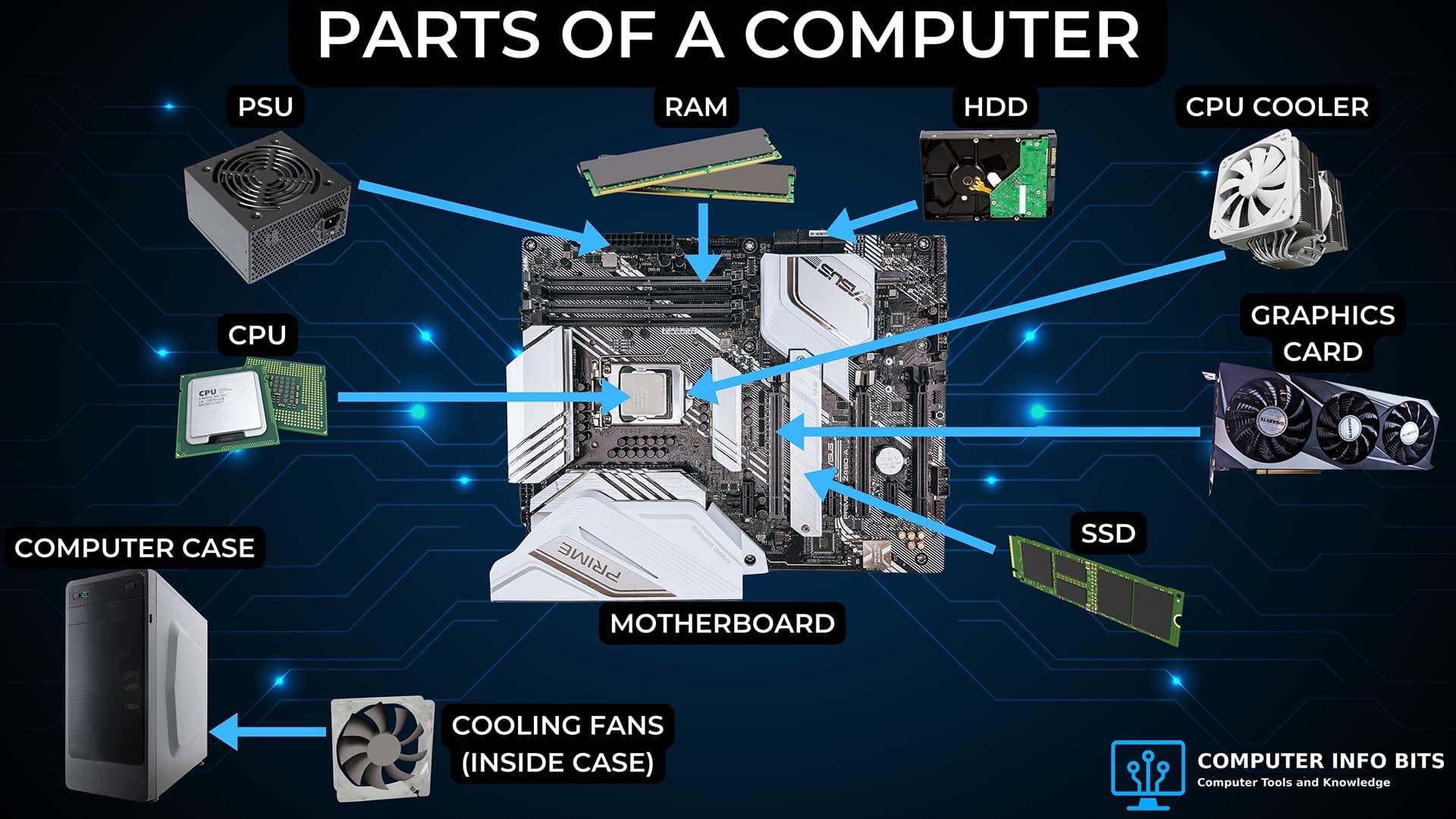
Each part has a specific job, and they all depend on each other. Here is the high-level breakdown:
- CPU or processor: Executes instructions and performs calculations.
- Motherboard: The main circuit board that connects all hardware together.
- RAM: Temporary memory for active programs and files.
- Storage: Permanent file storage for the operating system, apps, and documents.
- GPU or graphics card: Handles screen output, graphics, games, and visual workloads.
- Power supply: Converts wall power into the DC voltages computer components need.
- Case: The chassis that protects internal parts and guides airflow.
- Cooling: Fans, heatsinks, and sometimes liquid coolers that prevent overheating.
- Input devices: Keyboards, mice, microphones, webcams, scanners, and controllers.
- Output devices: Monitors, speakers, headphones, printers, and projectors.
- Ports and connectivity: USB, HDMI, DisplayPort, Ethernet, Wi-Fi, Bluetooth, and audio jacks.
Computer Parts Diagram
The visual diagram below shows how the main computer components fit together inside a desktop case. Use it as a map while reading the sections that follow.
Internal vs. External Computer Parts
Computer parts can be grouped into internal hardware and external devices. Internal parts live inside the case and make the computer run: the CPU, motherboard, RAM, storage, graphics card, power supply, cooling system, and cables. External parts sit outside the case and let you interact with the system: the monitor, keyboard, mouse, speakers, webcam, printer, and other peripherals.
Some devices blur the line. A laptop has the keyboard, screen, speakers, battery, and touchpad built into one body, while a desktop usually connects those parts separately. The functions are still the same: input devices send information in, output devices send information out, and internal components process, store, and move data.
Hardware vs. Software
The physical parts listed in this guide are hardware. Software is the set of instructions that tells the hardware what to do. The operating system, apps, drivers, games, web browsers, and utilities all rely on the hardware underneath them. Without software, the parts would sit idle; without hardware, the software would have nowhere to run.
1. CPU (Central Processing Unit)
The CPU, or central processing unit, executes the instructions your computer receives. When you click a button, open a file, or load a webpage, the processor handles those commands at billions of cycles per second. Inside the CPU, the arithmetic logic unit (ALU) performs the math and logical operations that drive software.
Inside a desktop, the CPU sits in a dedicated socket on the motherboard. Laptop processors use the same basic architecture, but they are tuned for lower power consumption and tighter cooling limits. Modern CPUs from Intel and AMD contain multiple cores, so they can work on more than one task at a time.
- Instruction processing: Runs operating system and application instructions.
- Arithmetic and logic: Performs calculations, comparisons, and decision-making operations.
- Coordination: Works with RAM, storage, and other components to move data around the system.
- Performance impact: Affects responsiveness, multitasking, game performance, and professional workloads.
Cores, Clock Speed, Cache, and TDP
Four specs matter most when comparing processors. Core count shows how many processing units the CPU has. Clock speed, measured in GHz, shows how fast those cores can run. Cache is a small amount of very fast memory built into the processor. TDP gives you a rough idea of how much heat the chip can produce under load.
For basic computing, 4 cores is usually enough. Gaming and content creation benefit from 6, 8, or more cores, especially when paired with a strong graphics card. If you are matching a CPU to a specific GPU, make sure one part is not likely to hold the other back.
2. Motherboard
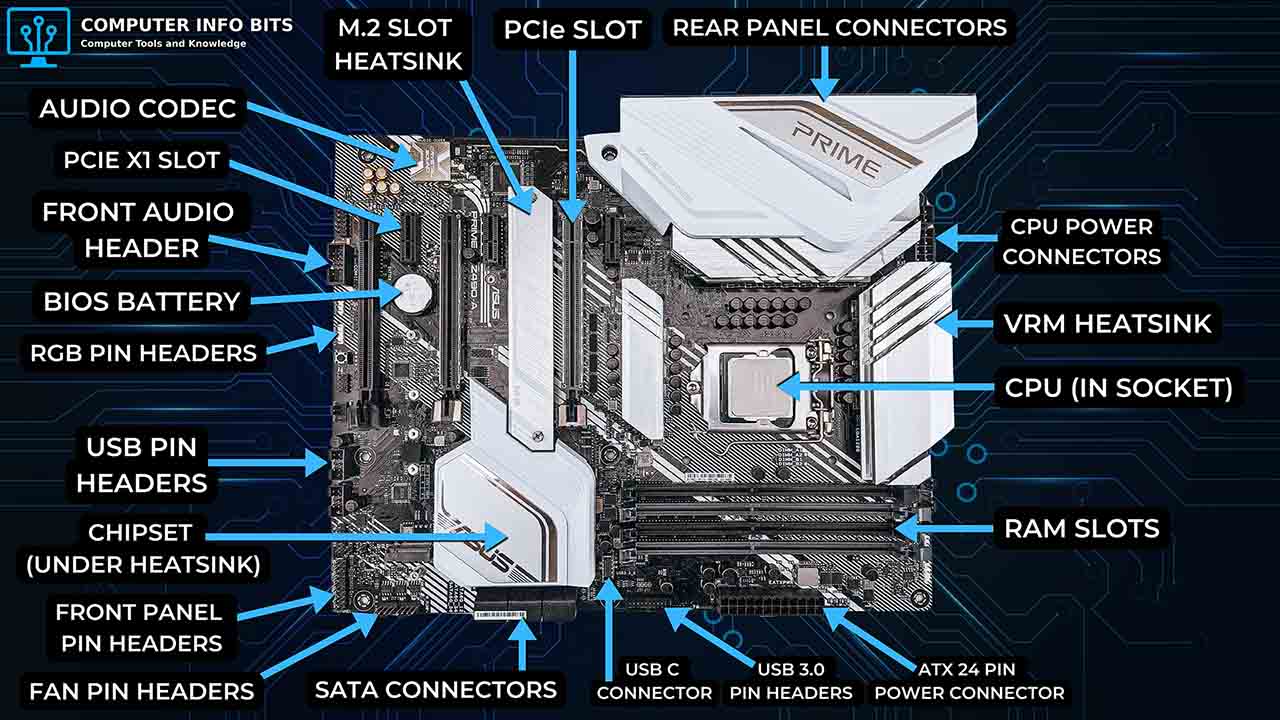
The motherboard is the main printed circuit board that holds and connects the computer's internal hardware. It provides the CPU socket, RAM slots, PCIe expansion slots, storage connectors, chipset, BIOS or UEFI firmware, power connectors, and rear I/O ports.
The motherboard routes data between the processor, memory, storage drives, graphics card, and peripherals. It also receives power from the PSU and distributes the correct voltages to different parts of the system.
- CPU socket: Holds the processor and must match the CPU family.
- RAM slots: Hold memory modules, usually in two or four slots.
- PCIe slots: Connect graphics cards, expansion cards, and some high-speed storage adapters.
- Chipset: Determines many supported features, ports, and expansion options.
- I/O panel: Provides USB, audio, Ethernet, display, and other external ports.
Motherboards come in form factors. ATX is the common full-size desktop standard, Micro-ATX fits smaller builds with fewer slots, Mini-ITX is compact, and E-ATX is used for large workstation or enthusiast boards.
3. Power Supply Unit (PSU)
The PSU, or power supply unit, converts AC electricity from your wall outlet into the DC voltages your computer needs. It sends power to the motherboard, processor, graphics card, storage drives, cooling fans, and other internal devices.
PSU capacity is measured in watts. A basic office PC might only need 350W, while a gaming PC with a dedicated graphics card may need 650W or more. Protection circuits inside the power supply help guard components against overloads and voltage problems.
- Wattage: Must be high enough for the whole system under load.
- Efficiency: 80 Plus ratings show how much energy is converted usefully instead of wasted as heat.
- Connectors: Supplies motherboard, CPU, PCIe, SATA, and peripheral power cables.
- Modularity: Modular PSUs let you attach only the cables you need.
If you are unsure how much capacity you need, estimate the wattage draw of your CPU, GPU, drives, fans, and any future upgrades before choosing a PSU. Modern graphics cards also pull short transient spikes well above their rated TDP, so a 750W unit paired with a 320W GPU and a 125W CPU is sensible headroom rather than overkill, and it keeps the PSU running cooler, quieter, and closer to its peak efficiency band.
4. RAM (Random Access Memory)
RAM, or random access memory, is the fast temporary memory your computer uses for active tasks. When you open a browser, launch a game, edit a document, or switch between programs, the data being used right now is loaded into RAM because the processor can access it far faster than a storage drive.
RAM is volatile, which means it clears when the computer turns off. Capacity is usually the biggest factor: 8GB handles basic tasks, 16GB is comfortable for gaming and everyday productivity, and 32GB or more suits content creation, heavy multitasking, and virtual machines.
| RAM Capacity | Recommended Use | Performance Level |
|---|---|---|
| 8GB | Basic web browsing and office tasks. | Entry-level |
| 16GB | Gaming, schoolwork, productivity, and everyday multitasking. | Mainstream |
| 32GB+ | Content creation, virtual machines, development work, and heavy multitasking. | High-end |
RAM generation also matters. DDR4 is still common in many systems, while DDR5 is newer and faster. Laptops may use low-power variants, and servers may use ECC memory that can detect and correct certain memory errors.
For most users, 32GB is the practical comfort ceiling. Beyond that, the gains rarely show up outside virtual machines, large-scene 3D rendering, professional video editing, and similar memory-heavy creative work. In a typical gaming or productivity build, fast dual-channel 32GB matters more than 64GB at slower speeds.
5. Storage: SSDs, HDDs, and Portable Drives
Storage is permanent memory for the operating system, applications, games, photos, documents, and backups. Unlike RAM, storage keeps data when the computer turns off.
Hard Disk Drives (HDDs)
A hard disk drive uses spinning magnetic platters and a read/write head to store files. HDDs are slower and more fragile than SSDs, but they offer high capacity for a lower price, which makes them useful for archives, backups, media libraries, and bulk storage.
Solid State Drives (SSDs)
A solid-state drive uses flash memory and has no moving parts. SSDs make the whole system feel faster because Windows, apps, and games load more quickly. SATA SSDs are already much faster than hard drives, while NVMe M.2 SSDs connect through PCIe lanes and can reach several thousand MB/s.
- Budget setup: 500GB SATA SSD for the operating system and main files.
- Balanced setup: 1TB NVMe SSD for the operating system, games, and applications.
- High-capacity setup: NVMe SSD for the operating system plus a large HDD for media and backups.
- Professional setup: Multiple SSDs for active projects, scratch disks, or redundancy.
In everyday use, booting Windows, launching apps, browsing, and opening documents, the gap between a good SATA SSD and an NVMe drive is much smaller than spec sheets suggest. NVMe only pulls clearly ahead during large file transfers, video editing, content creation scratch work, and a small number of DirectStorage games. For most office and home builds, a SATA SSD still feels fast, and the case for NVMe is really about workload, not everyday responsiveness.
Portable Storage Devices
Portable storage devices let you move files between computers. USB flash drives are useful for documents and installers, SD cards are common in cameras and laptops, and external hard drives or external SSDs are useful for backups, media libraries, and large project files.
6. GPU (Graphics Processing Unit)
The GPU, or graphics processing unit, renders everything you see on the screen. From desktop windows to video playback and 3D games, the graphics card calculates and draws pixels. While the CPU handles complex logic, the GPU excels at thousands of simpler calculations in parallel.
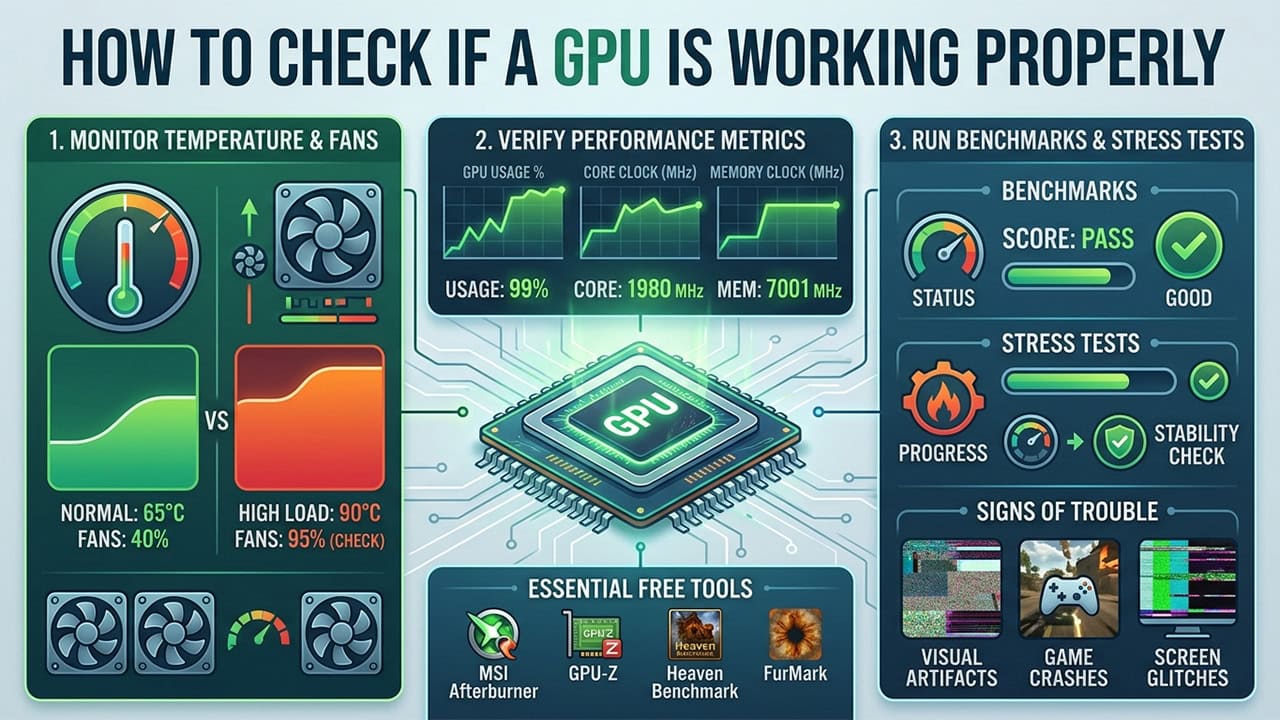
Graphics hardware can be built into the processor or installed as a separate dedicated card. Crashes, overheating, and visual artifacts are common warning signs that the GPU needs closer testing.
- Dedicated graphics card: Separate card with its own VRAM, best for gaming, 3D work, AI workloads, and creative apps.
- Integrated graphics: Built into the processor, lower power draw, fine for office work and media playback.
- VRAM: Video memory used for textures, frame buffers, and high-resolution visual data.
- Display outputs: HDMI, DisplayPort, and USB-C send video to monitors and TVs.
7. Input and Output Devices
Input Devices
Input devices send information and commands to the computer. Desktops usually rely on external peripherals, while laptops include some of them directly in the chassis.
- Keyboard: Sends text and shortcut commands.
- Mouse or touchpad: Controls the pointer and selections.
- Microphone: Captures voice and other audio.
- Webcam: Captures video for calls, streaming, and recording.
- Scanner: Converts physical documents into digital files.
- Game controller or joystick: Provides analog input for games and simulators.
Output Devices
Output devices present processed information back to the user. The monitor shows the visual interface, speakers play audio, and printers produce physical copies of documents or images.
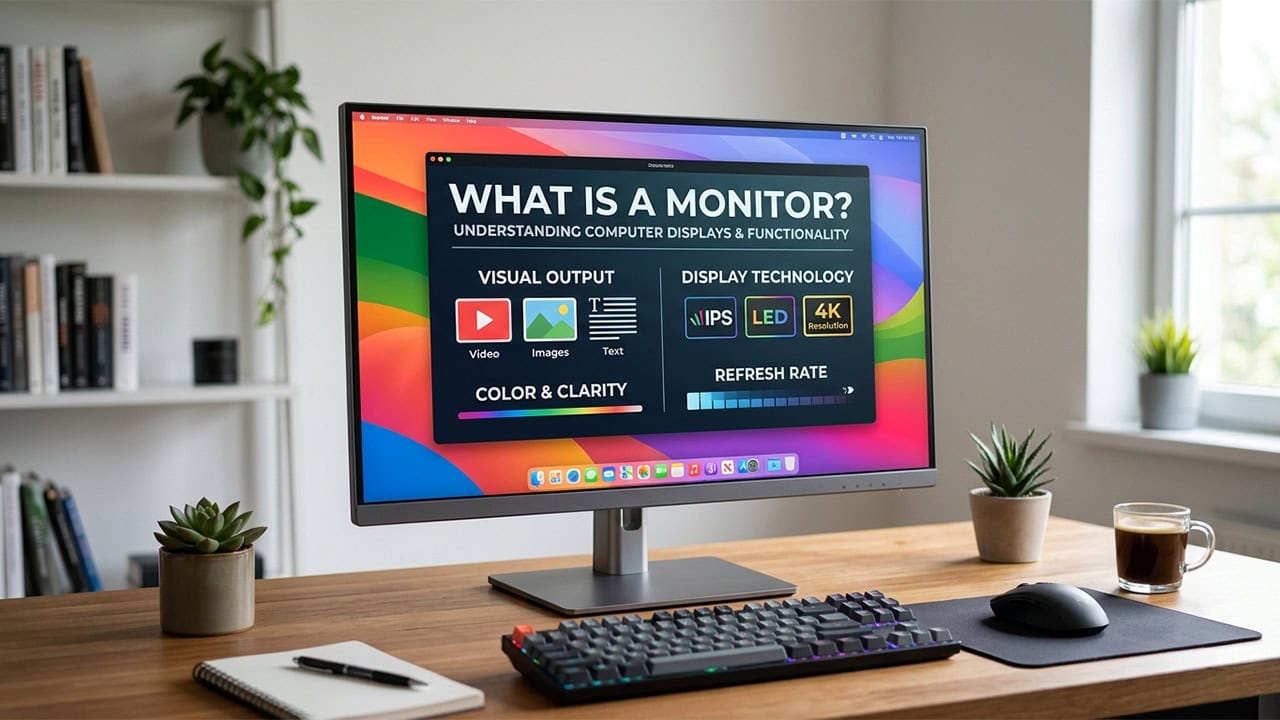
The monitor is the primary output device. Modern displays range from budget TN panels to high-end OLED screens, with IPS and VA falling in between. Each panel type has trade-offs in color, contrast, viewing angle, and response time.
- Monitor: Displays the graphical interface, videos, games, and apps.
- Speakers or headphones: Output sound from the sound card or onboard audio.
- Printer: Produces physical copies of text and images.
- Projector: Displays the screen image on a large surface.
8. Computer Case
The computer case protects the internal hardware from dust, knocks, and accidental contact. It also controls airflow, supports storage drives, provides mounting points for fans and radiators, and gives you front-panel ports and power buttons.
Case size must match the motherboard form factor. Full-size towers provide more room for expansion and cooling, while smaller cases save space but require more careful planning.
- Drive bays and mounts: Hold SSDs and HDDs securely.
- Front I/O panel: Provides quick access to USB, audio, and power controls.
- Cable routing: Keeps cables out of the airflow path.
- Dust filters: Reduce how often the inside of the system needs cleaning.
9. Cooling and Airflow
Cooling is critical because the CPU and GPU generate significant heat under load. If temperatures climb too high, the computer may slow down through thermal throttling, crash, or shut itself off to protect the hardware.
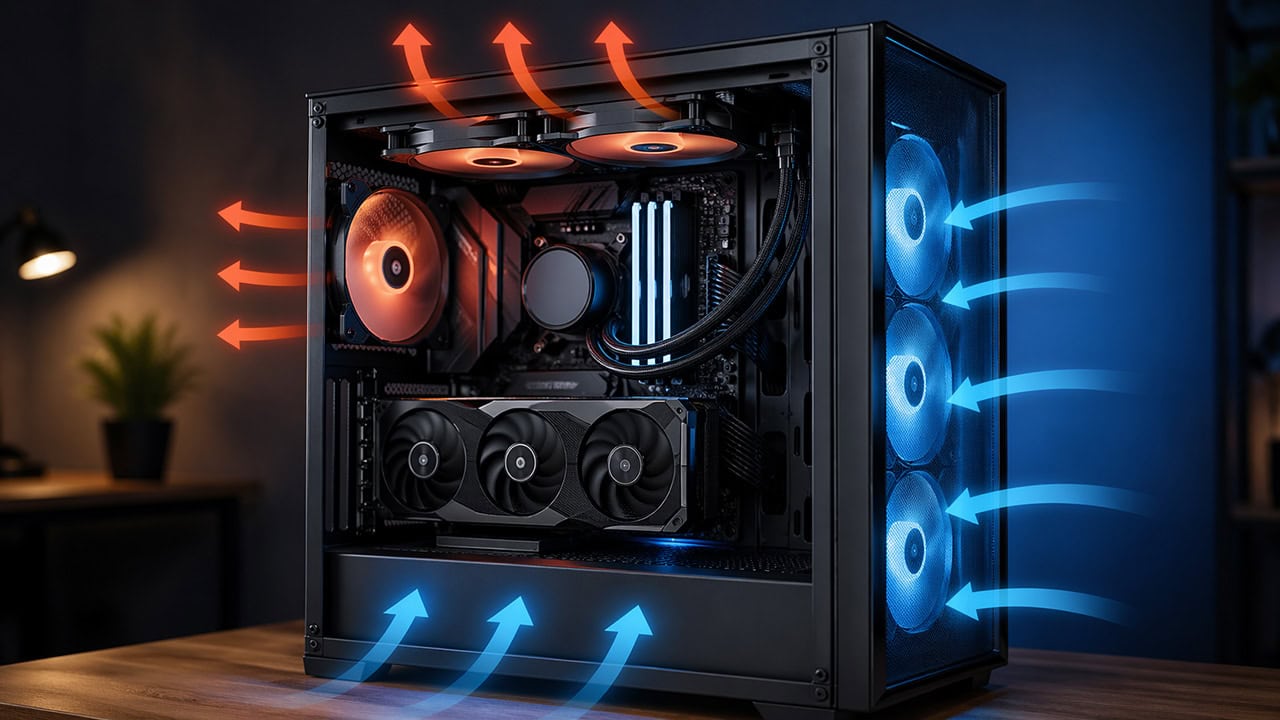
Most systems use air cooling: a heatsink sits on the processor, heat moves into metal fins, and a fan pushes air across the cooler. Case fans then pull cool air in and push warm air out. Liquid cooling uses a pump, coolant, water block, and radiator to move heat away from high-power components.
- Stock cooler: Included with some processors and adequate for default clock speeds.
- Tower air cooler: Aftermarket heatsink with one or two fans, good for most builds.
- AIO liquid cooler: Closed-loop liquid cooler with a 120mm, 240mm, or 360mm radiator.
- Case airflow: Intake and exhaust fans control the direction air moves through the case.
- Thermal paste: Fills microscopic gaps between the CPU and cooler for better heat transfer.
For most consumer CPUs, a quality tower air cooler keeps temperatures comparable to a 240mm AIO at lower cost and with no pump or leak risk. AIOs earn their place on higher-power chips, in cases with tight CPU clearance, or where the extra radiator surface area is genuinely needed.
Proper fan placement is the best way to prevent heat build-up. Balanced intake and exhaust airflow keeps temperatures lower and helps prevent dust from entering through every gap in the case.
10. Connectivity, Ports, and Networking
Modern computers rely on wired and wireless connections to access the internet, share files, connect peripherals, and drive displays. Some ports are built into the motherboard, while others come from the case, graphics card, expansion cards, or external adapters.
Wired Connections
Ethernet connects a computer directly to a router, modem, or network switch. A wired connection is usually faster and more reliable than Wi-Fi, which is why it is preferred for gaming, large file transfers, and stable video calls.
Wireless Connections
Wi-Fi connects laptops and desktops to a wireless router without cables. Bluetooth is used for short-range peripherals such as keyboards, mice, headphones, speakers, and controllers.
Common Ports and Connectors
- USB: Connects keyboards, mice, flash drives, printers, webcams, and many other devices.
- USB-C: Reversible connector used for data, charging, displays, and docks depending on support.
- HDMI: Carries video and audio to monitors and TVs.
- DisplayPort: Common on graphics cards and high-refresh-rate monitors.
- Ethernet: RJ-45 network port for wired internet and local networks.
- Audio jacks: 3.5mm ports for microphones, headphones, speakers, and line-in devices.
Quick Component Reference
| Part | Main Function | Key Detail |
|---|---|---|
| CPU | Instruction processing | Core count, clock speed, cache, and cooling all affect performance. |
| Motherboard | Component connection | Socket, chipset, RAM type, and form factor determine compatibility. |
| RAM | Active data storage | More capacity enables smoother multitasking. |
| Storage | Permanent file storage | SSDs improve responsiveness; HDDs still work well for bulk storage. |
| GPU | Visual rendering | Dedicated cards include VRAM for graphics, games, and creative work. |
| PSU | Power conversion | Wattage rating must meet system demand with some headroom. |
| Case | Protection and airflow | Case size must match the motherboard and graphics card. |
| Cooling | Heat management | Balanced intake and exhaust airflow helps prevent thermal throttling. |
| Input devices | Send commands | Keyboard, mouse, microphone, scanner, webcam, and controller all count. |
| Output devices | Present results | Monitor, speakers, headphones, printer, and projector show or play output. |
| Ports and networking | External connection | USB, HDMI, DisplayPort, Ethernet, Wi-Fi, Bluetooth, and audio ports link devices. |
Understanding these components is essential for maintaining a healthy system. If you are ready to improve your PC's performance, start with the part causing the biggest bottleneck rather than replacing parts at random.
Frequently Asked Questions
What is the most important part of a computer?
There is no single most important part. Without a CPU, motherboard, RAM, storage, and power supply, a computer will not run at all. For gaming and creative work, the GPU usually has the biggest impact on visual performance, while RAM and a fast SSD have the biggest impact on everyday responsiveness.
How many main parts does a computer have?
A typical desktop has around ten core parts: CPU, motherboard, RAM, storage, GPU, power supply, case, cooling, input devices, and output devices. The exact count depends on whether you separate things like networking, ports, and cooling into their own categories.
What is the brain of the computer?
The CPU, or central processing unit, is often called the brain of the computer because it executes instructions and performs the calculations that drive everything else. Modern systems also rely heavily on the GPU for parallel work like graphics, video, and AI.
What is the difference between RAM and storage?
RAM is fast temporary memory used while the computer is running, and it clears when you turn the computer off. Storage, such as an SSD or hard disk, keeps your operating system, apps, and files saved permanently between restarts.
Can a computer work without a graphics card?
Yes, if the processor includes integrated graphics. Many Intel and some AMD CPUs can drive a display on their own, which is fine for office work and media playback. A dedicated graphics card is needed for gaming, 3D rendering, and similar visual workloads.
Do laptops have the same parts as desktops?
Laptops use the same core components: CPU, motherboard, RAM, storage, GPU, battery, cooling, and input and output devices. The main differences are that laptop parts are smaller and lower-power, and the keyboard, screen, speakers, and touchpad are built into the chassis instead of being separate.



Related Posts
Parts of a Motherboard and Their Functions
CPU socket, chipset, RAM slots, PCIe slots, SATA ports, M.2 connector, BIOS chip, and rear I/O panel explained.
PC Airflow Optimization: How to Cool Your Computer
Set up your case fans correctly to keep temperatures low and reduce dust buildup.
How to Check if a GPU Is Working Properly
Test your graphics card using Task Manager and MSI Afterburner. Covers common GPU problems and fixes.
What Is a Monitor and the Various Types
A complete guide to monitor panel types, resolutions, refresh rates, and connection options.