Why Do Computers Slow Down With Age?
Computers slow down with age mostly because software keeps getting more demanding while your hardware stays the same. Over the years, the operating system and apps need more power and memory, your drive fills up, and dozens of background programs fight for resources. The good news: nearly all of this is fixable without buying a new computer.
A PC that once started in 30 seconds might now take two minutes. This happens to almost every computer, and it is rarely because the parts wore out. The real reasons are software, storage, and a lack of cleaning.
Software Keeps Getting Heavier
Every big software update adds features that need more power to run. Windows 10 needed 2 GB of RAM at a minimum. Windows 11 needs 4 GB, and Microsoft recommends 8 GB or more for good performance. Web browsers use far more memory than they did five years ago because websites are more complex now.
Your CPU and RAM were chosen for the software that existed when you bought the computer. As programs grow, your hardware has to work harder to keep up. To see if memory is the limit, press Ctrl + Shift + Esc to open Task Manager and click the Performance tab. If RAM use stays above 80% during normal work, more memory would help a lot.
Your Drive Fills Up
Over months and years, files pile up: downloads, photos, documents, programs, and system updates. When a hard drive or SSD gets more than about 85% full, performance drops in a way most people do not expect.
Your computer needs free space to work. It uses that space for temporary files and virtual memory. When the space runs low, every task gets slower. Empty your Downloads folder and Recycle Bin, run Disk Cleanup on Windows or Manage Storage on a Mac, and uninstall programs you have not opened in months. A good rule is to keep at least 15% of the drive free.
Too Many Startup Programs
Almost every program you install wants to launch when the computer turns on. After a few years you might have 30 or more programs all starting at once, each using memory and processor time even if you never open it. This is the biggest reason a computer feels slow right after it boots.
To fix it, press Ctrl + Shift + Esc, click the Startup apps tab, and look at the Status column. Right-click anything you do not need right away and choose Disable. This does not delete the program — it just stops it from starting on its own, and you can still open it whenever you want.
Malware and Bloatware
Malware often runs hidden programs that eat resources. Some uses your CPU to mine cryptocurrency; some shows ads or tracks you. Even software you installed on purpose, like toolbars and "free" bundled extras, can run constantly in the background.
Windows includes Microsoft Defender. Run a full scan at least once a month, keep its definitions updated, and be careful about what you download and install. For a second opinion, a dedicated tool like Malwarebytes can catch what slips through.
Hard Drive Fragmentation
If you still have a traditional hard drive, files can become fragmented, which means pieces of one file get scattered across the disk. The drive then has to jump around to read them, which is slower. Running the built-in Windows defragment tool on an HDD fixes this.
Important: Never defragment an SSD. Defragmenting helps spinning hard drives, but it wears an SSD out faster with no speed gain. Windows already optimizes SSDs the right way on its own.
Dust and Heat
As dust builds up inside the case, it blocks airflow and traps heat. When the CPU or graphics card gets too hot, it slows itself down on purpose to avoid damage. This is called thermal throttling, and a computer that has not been cleaned in years can run much hotter than when it was new.
Use compressed air to blow dust out of the vents and fans every few months, or more often if you have pets. On a laptop, make sure the vents are not blocked by soft surfaces like a bed or couch. Setting up good case airflow keeps dust and heat down for longer.
Does the Hardware Actually Wear Out?
Some physical wear does happen, but it is rarely the reason for everyday slowness. The slowdown you notice after a year or two is almost always software, not failing parts.
Traditional hard drives have spinning platters and moving heads that wear down. A typical HDD lasts around 3 to 5 years of heavy use, according to Backblaze's drive statistics. SSDs have no moving parts. Their memory cells can only be written a limited number of times, but modern SSDs handle hundreds of terabytes of writes, so they usually outlast the rest of a home computer.
Low RAM has a hidden cost. When physical memory runs out, the computer borrows space from the storage drive and pretends it is RAM. But even a fast SSD is far slower than real memory, so constant swapping — called "thrashing" — makes the whole system crawl. It is why a PC with too little RAM feels painfully slow even during simple tasks.
The Two Upgrades That Help Most
If cleaning and maintenance are not enough, two upgrades make the biggest difference for an aging computer.
- Add more RAM: Going from 4 GB to 8 GB or 16 GB lets more programs run smoothly at once. Our RAM configuration tool shows how much would help for your use.
- Switch to an SSD: If you still run a spinning hard drive, moving to an SSD is the single most noticeable speed upgrade. See the storage speed comparison for how big the gap really is.
An SSD can make an old computer feel almost new. Boot times that took two minutes on a hard drive often drop to 20 seconds or less.
When to Replace Instead of Upgrade
Sometimes fixing an old computer is not worth the cost. Lean toward replacing it if:
- The CPU is more than 7 to 8 years old and cannot run current software smoothly.
- The cost of upgrades is more than half the price of a new computer.
- The computer no longer gets security updates from the maker.
- Hardware failures are becoming frequent.
For a computer 3 to 5 years old, adding RAM or an SSD usually gives excellent value. Older than that, it depends on how you use it and whether the CPU can still handle your work. Either way, reviewing files now and then, keeping the drive from filling up, and clearing dust regularly will keep the next slowdown much further away.



Related Posts
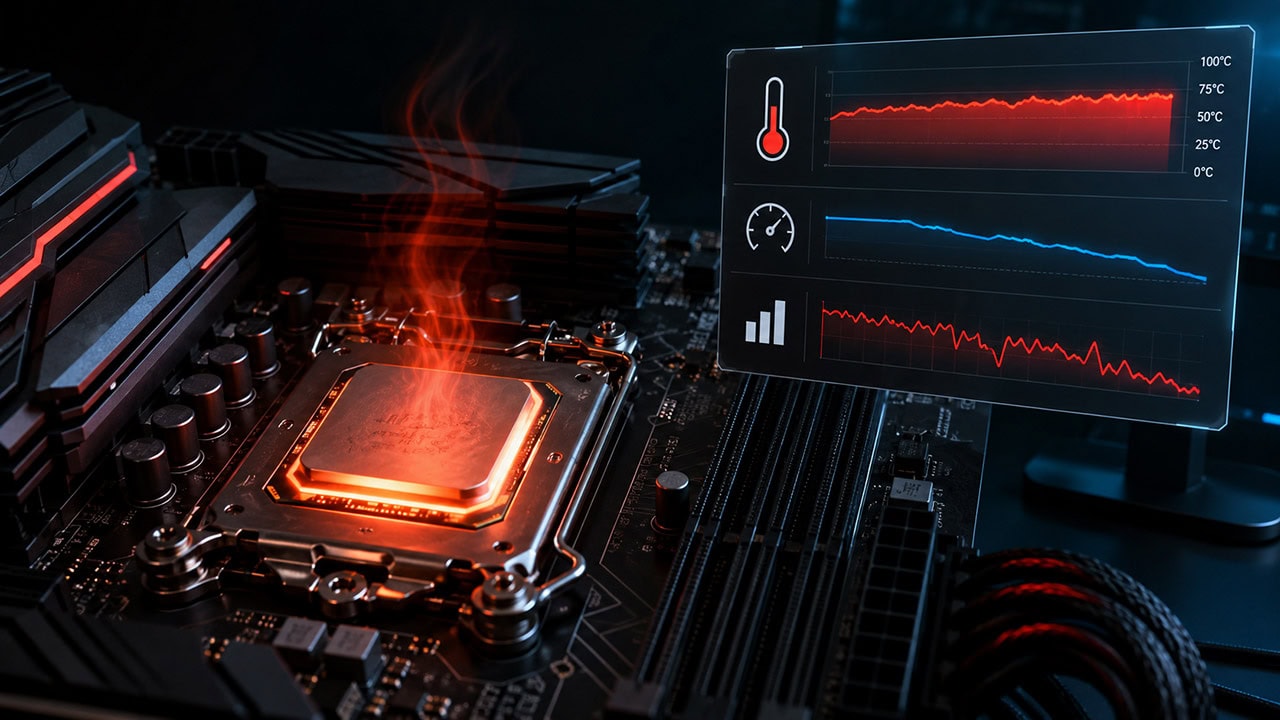
How to Know If Your CPU Is Thermal Throttling
Spot the signs of a CPU slowed by heat, confirm it with HWiNFO64, and learn the Intel and AMD limits that trigger it.
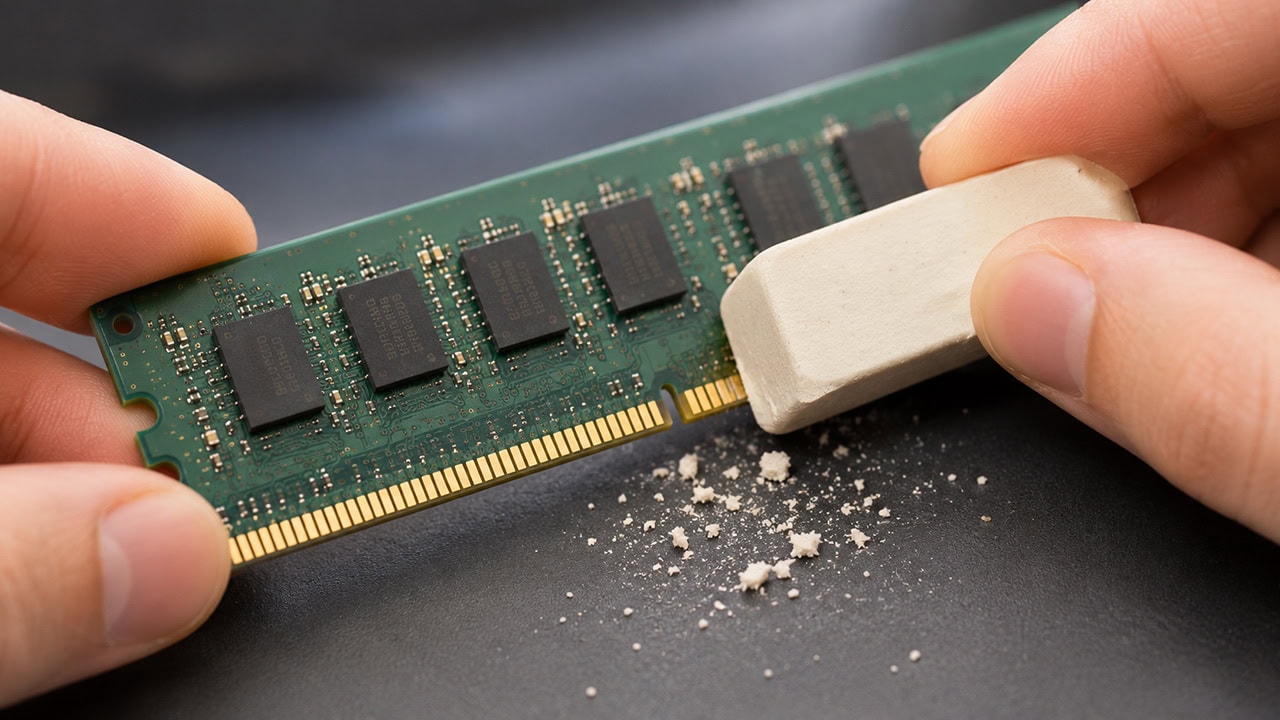
How to Clean RAM Contacts
A safe, ten-minute fix for weak memory connections caused by dirty or oxidized gold pins.
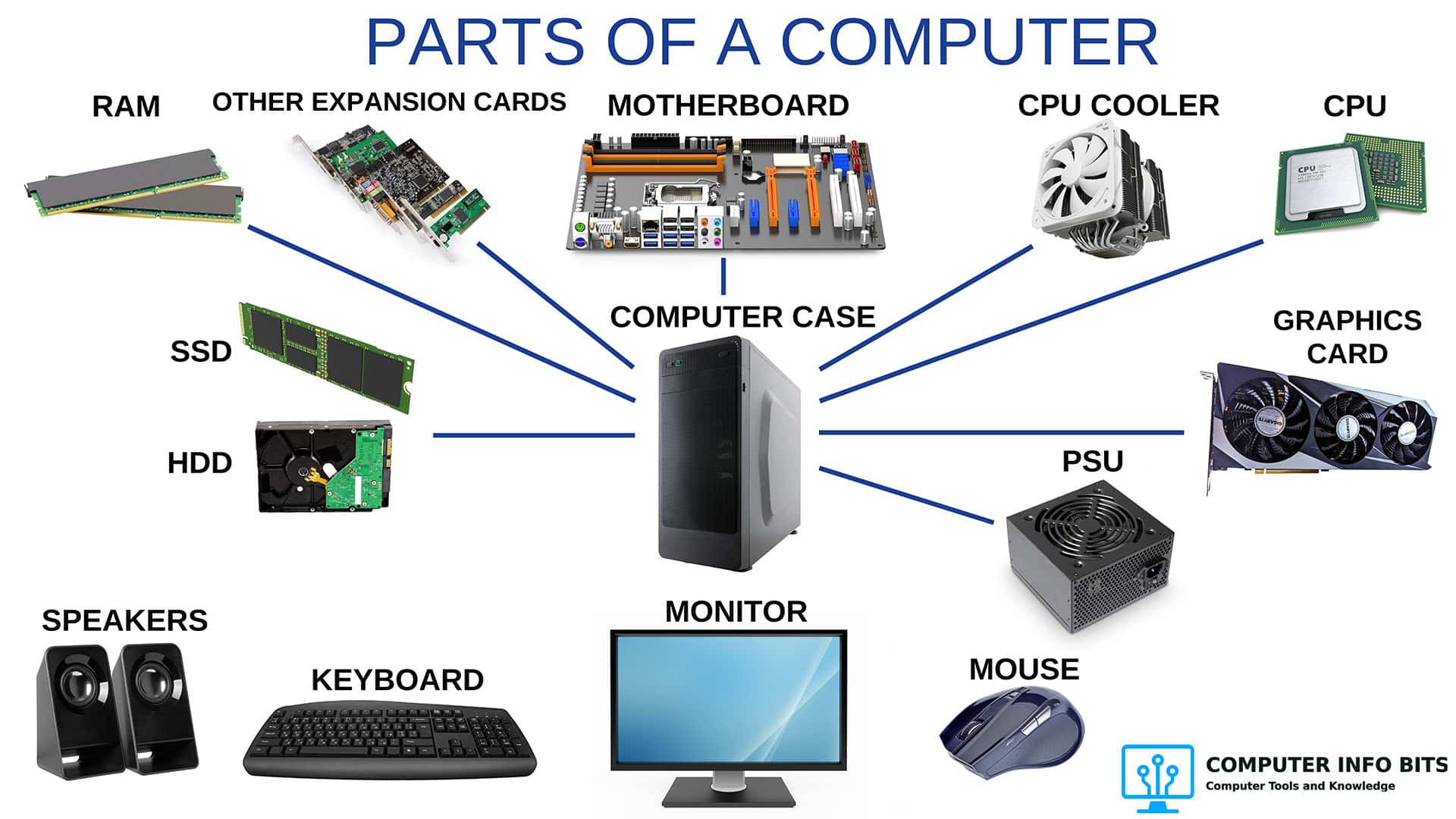
Parts of a Computer and Their Functions
A complete breakdown of every major PC component including RAM, the CPU, and storage.
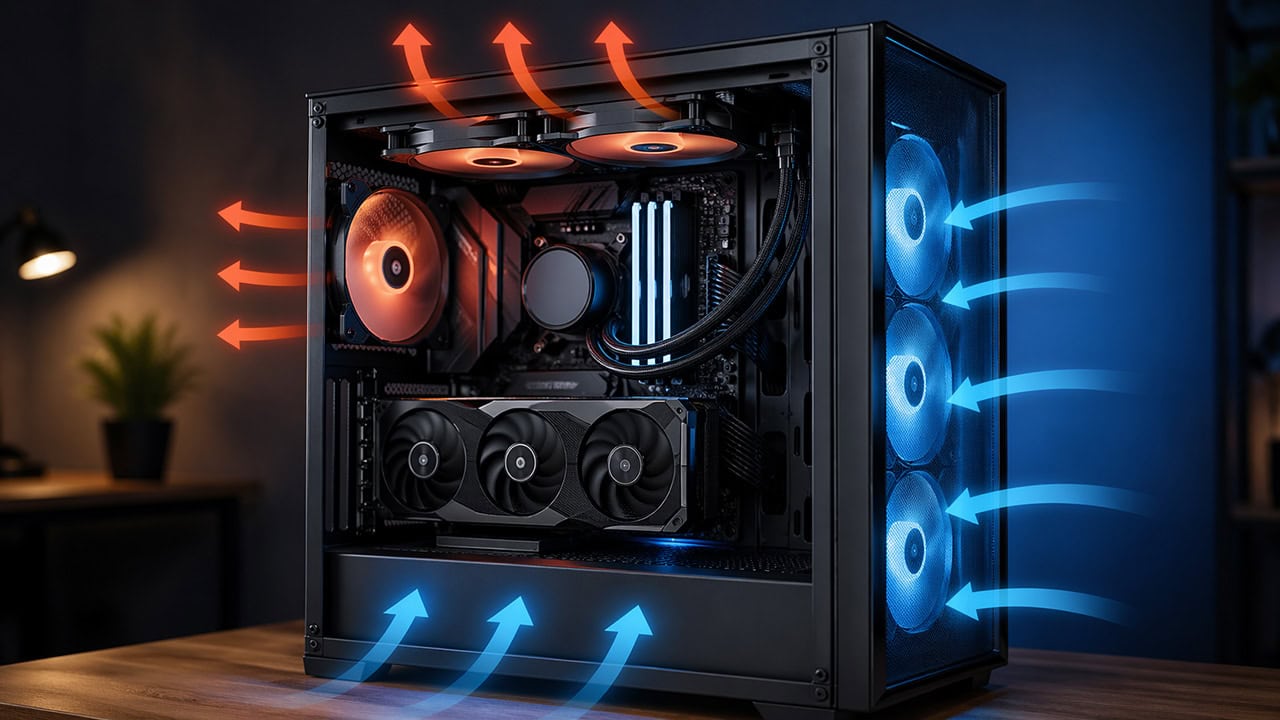
PC Airflow Optimization: How to Cool Your Computer
Set up your case fans correctly to keep temperatures low and reduce dust buildup.