How to Know If Your CPU Is Thermal Throttling
To know if your CPU is thermal throttling, watch two things while it works hard: how hot it gets and how fast it runs. When the CPU heat climbs near the chip's safe limit and the speed drops below its base speed, the CPU is throttling. The fastest way to confirm this is a free tool called HWiNFO64. It shows a "Thermal Throttling" flag that flips from No to Yes the moment heat starts to slow your CPU down.
What CPU Thermal Throttling Means
Your CPU has heat sensors built right into the chip. When the chip gets too hot, it slows itself down on purpose. This is how it stops itself from being damaged by heat.
The slowdown is real and easy to feel. A CPU made to run at 4.5 GHz might drop to 3.5 GHz, then 3.0 GHz, until it cools off. You feel this as choppy games, lower frame rates, or a video export that takes much longer than it should.
Signs Without Tools
Some everyday signs hint that heat is holding back your CPU. Any one of them on its own could come from something else. Seeing several at once is a strong clue.
- Frame rate drops in games: A game running smoothly at 60 FPS suddenly falls into the 30s for a few seconds, then comes back.
- Choppy spots come and go: Things run fine, then get jumpy, then fine again.
- Loud fans: You hear the fans go to full speed and stay there during normal use.
- Tasks slow down as they run: The first minute of a task feels fast, then it falls off as the chip heats up.
- Hot case: The PC case feels warm to the touch near the CPU vent.
These point to heat. To be sure, you need to see the throttle flag and the CPU speed at the same time.
The Check With HWiNFO64
HWiNFO64 is the best tool for this job. It shows the reason your CPU is slowing down, not just that it is. It is free for personal use.
- Get HWiNFO64 from the official site. Open it and pick "Sensors-only" at the start screen.
- Scroll down to the CPU section. Look for three sensor names: Core Effective Clocks, CPU Package, and Thermal Throttling.
- Run a hard task. A game, a video export, or a stress test like Cinebench all work well.
- Watch the Thermal Throttling row. Each core has its own flag. If any core flips to Yes, that core is being held back by heat right now.
- Check the CPU Package temperature when you see Yes. It should be at or very close to the safe limit for your chip.
Tip: Right-click any row in HWiNFO64 to save the lowest, highest, and average values to a file. This helps when throttling only happens for a few seconds at a time.
Other Ways to Detect It
HWiNFO64 is the clearest, but other tools can still tell you what is going on if you know what to look at.
Core Temp
Core Temp shows the temperature of each CPU core and the current speed. It does not have a Yes/No flag. But if you see the temperature stuck at the safe limit and the speed dropping below the base, the CPU is throttling.
PC Reporter
Our free PC Reporter for Windows 11 shows live CPU and GPU temperatures on one screen, along with RAM, storage, and driver status. It is a fast way to see if your CPU is already running hot before you dig into a more detailed tool.
Task Manager
Windows Task Manager has a useful trick. Open the Performance tab and click CPU. Watch the Speed reading at the bottom. Run something that loads the CPU. If the Speed sits below the "Base speed" listed on the same page while the CPU is fully busy, something is holding it back. On a PC with no power tuning, heat is the most common cause.
The Motherboard BIOS or UEFI
The BIOS setup screen shows live CPU temperature on most modern boards. It cannot confirm throttling because the BIOS does not run Windows or real workloads. But it is a useful sanity check for idle heat. If your CPU sits at 60 to 70°C just inside the BIOS, your cooling has a problem before any work even starts.
Game and Benchmark Overlays
Tools like MSI Afterburner with RivaTuner Statistics Server can show CPU speed and temperature on the screen while you play. Seeing the speed drop below the base during a busy scene catches throttling in the act.
CPU Temperature Limits
The temperature that triggers throttling is set by the chip maker and built into the silicon. Knowing the number for your CPU is what turns a temperature reading into a throttling diagnosis.
| CPU Family | Throttle Limit | Notes |
|---|---|---|
| Intel desktop and laptop CPUs | 100°C (212°F) | Intel calls this TJ Max or Tjunction. Most current Core i3, i5, i7, i9, and Core Ultra chips share this limit (Intel processor specifications). |
| AMD Ryzen desktop CPUs | 90–95°C (194–203°F) | AMD Ryzen chips target around 90°C. Some Ryzen 7000 chips are designed to run right at 95°C under load (AMD support article). |
| AMD Ryzen mobile / APU | 95–100°C | Mobile chips often run hotter because thin laptops are harder to cool. |
The most useful check is your current CPU Package temperature against the limit for your chip. If you are within a couple of degrees of that limit under load and your speeds are dropping, the chip is throttling.
Thermal Throttling vs Power Throttling
A slowdown under load is not always from heat. A modern CPU can also slow itself down to stay inside a power or current limit. The result looks the same from the outside — slower speed. HWiNFO64 splits them apart, which is why it is so useful for this check.
- Thermal Throttling: heat triggered. The chip is near its safe limit.
- Power Limit Throttling (Intel PL1/PL2, AMD PPT): power triggered. Common on laptops and on boards with careful power settings.
- Current Limit Throttling: current triggered. The chip drew more current than it should.
- VR Thermal Throttling: caused by the small chips on the motherboard that feed power to the CPU getting hot, not the CPU itself. Points to a motherboard cooling problem.
If HWiNFO64 says "Power Limit: Yes" but "Thermal Throttling: No," the slowdown is not from heat. The fix for power limits is different from a cooling fix.
What to Do About It
Once you know the CPU is throttling from heat, the fix is almost always about getting heat away from the chip. Start here.
- Clean the dust: Use canned air on the CPU heatsink, the case fans, and the dust filters. A dusty heatsink can lose 20 to 30 percent of its cooling power.
- Improve case airflow: Make sure fans are set up for a clear front-to-back air path. The full guide on PC airflow optimization walks through fan placement.
- Re-do the thermal paste: If you have not pulled your CPU cooler off in three or more years, the old paste is dry. Fresh paste can drop temps by 5 to 10°C on its own.
- Cool the room: A room above 80°F gives any cooler less to work with. Air conditioning, an open window, or moving the PC away from a warm wall all help.
- Upgrade the cooler: If the chip is on a stock cooler and your task needs more, a good tower air cooler or a 240mm AIO will buy back the lost speed.
Try the free fixes before you spend money on a new cooler. Most CPU throttling on a two to three year old PC is dust, dried paste, or fan placement — not an undersized cooler.



Related Posts
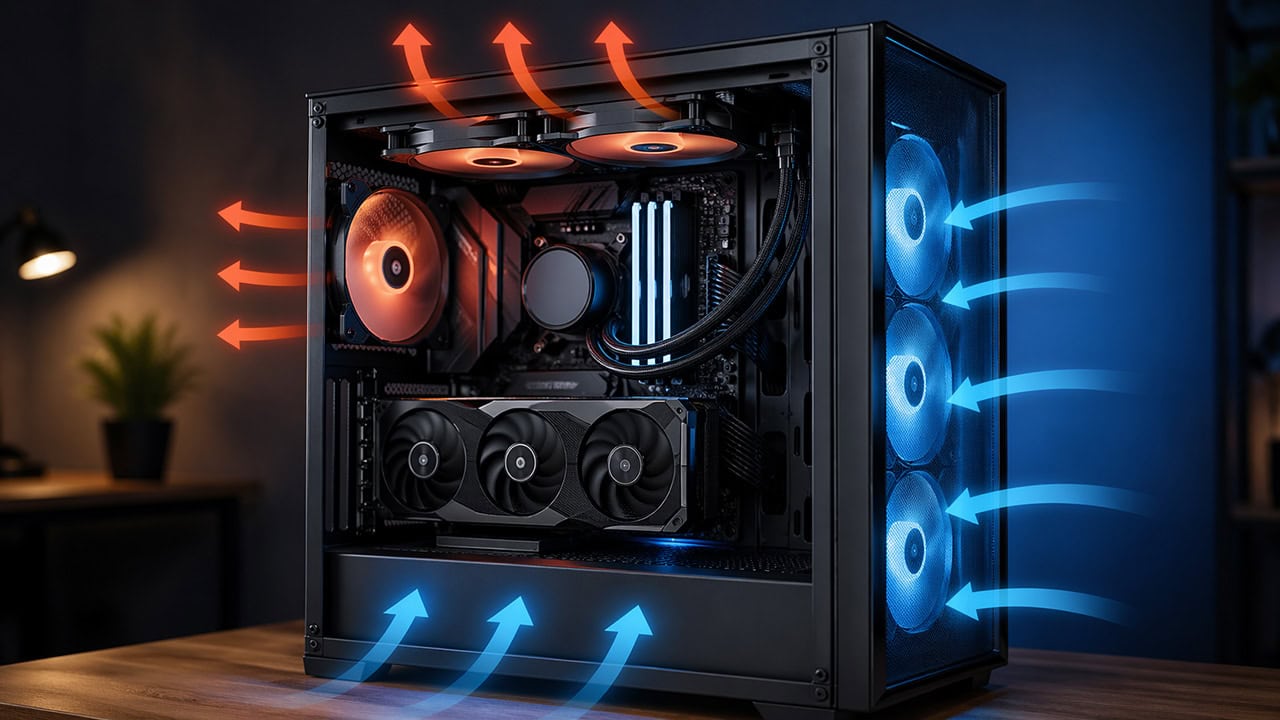
PC Airflow Optimization: How to Cool Your Computer
Set up your case fans correctly to keep temperatures low and stop heat slowdowns at the source.
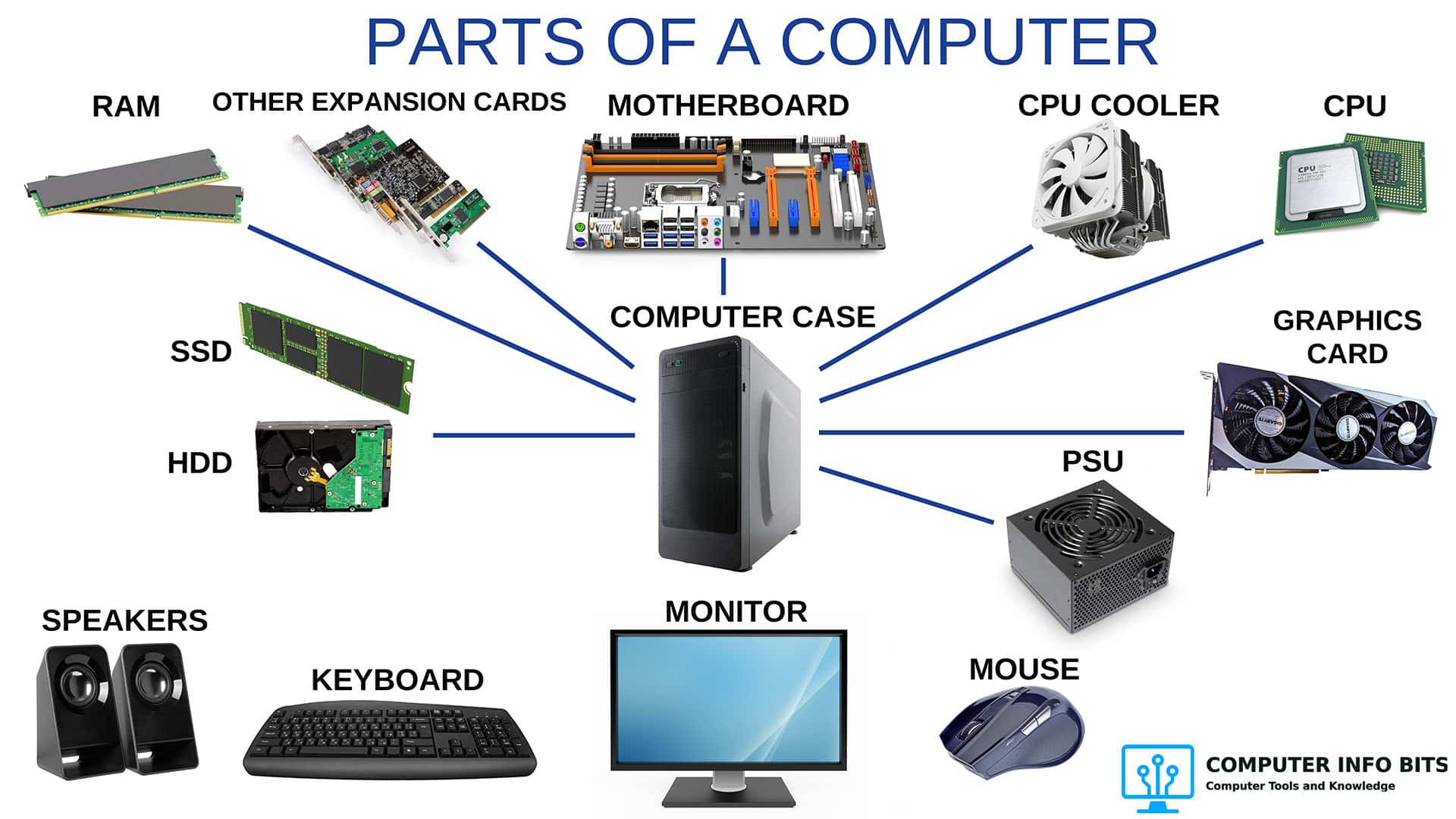
Parts of a Computer and Their Functions
A complete breakdown of every major PC component including the CPU, cooling, and power delivery.
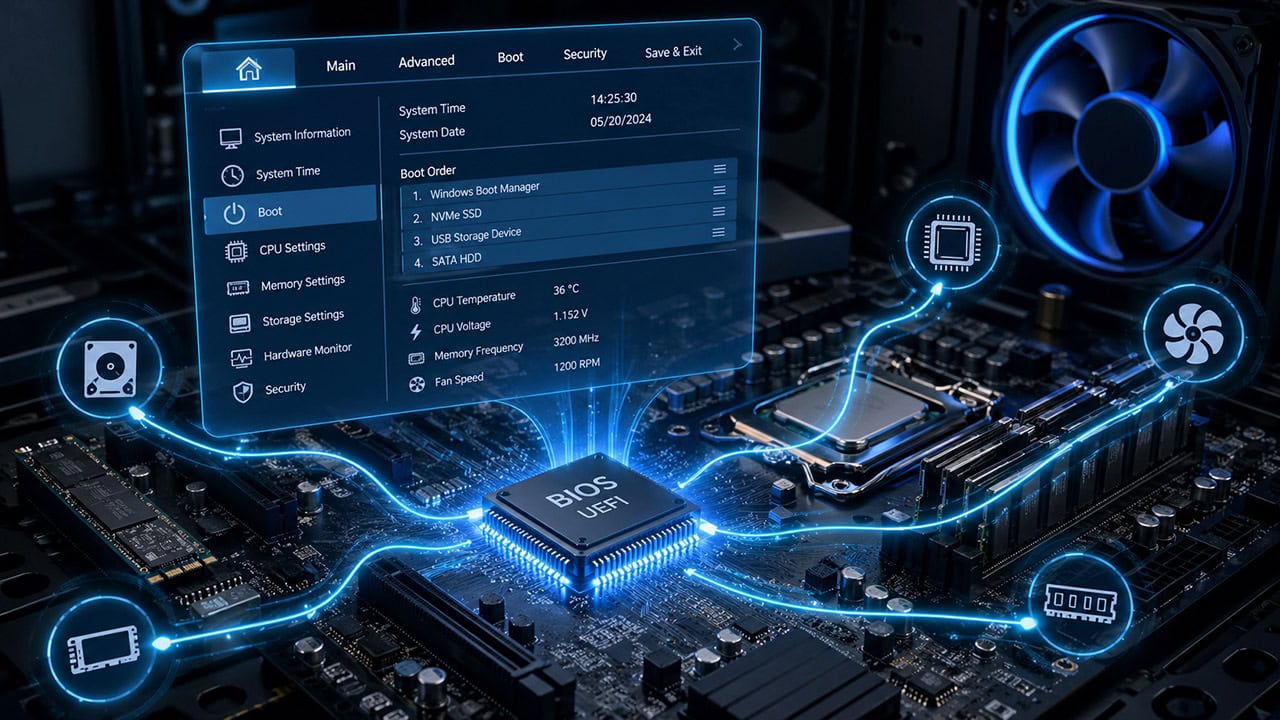
Understanding the BIOS and Its Main Functions
The BIOS shows live CPU temperatures and is the first place to check for early heat trouble.

Why Do Computers Slow Down With Age?
The real causes of an aging PC slowing down, and the fixes that bring it back without a new computer.