Understanding the BIOS and Its Main Functions
Understanding the BIOS and its main functions starts with one idea: when you press the power button, the BIOS (Basic Input/Output System) is the first thing that runs. It checks that your connected hardware components are working, then loads Windows, macOS, or whatever operating system you use. Knowing how the BIOS works makes it much easier to fix startup problems and tune how your PC behaves.
BIOS is a type of firmware stored on your motherboard. Most new PCs use UEFI, the newer version of BIOS, but most people still call it "the BIOS."
What Is BIOS?
BIOS stands for Basic Input/Output System. It is a small program that lives on a chip on your motherboard. This chip gives your computer the first set of instructions it needs when you press the power button.
Here is what makes BIOS different from other programs: it is not saved on your hard drive or SSD. Instead, it is built into a special ROM chip that remembers everything even when your computer is completely off.
BIOS firmware is non-volatile, so any settings you change stay saved when the power is off. It is also part of the motherboard itself, not software you install. That means it works the same way no matter which operating system you use, and it still runs on a brand-new PC that has no operating system on its drive yet.
POST (Power-On Self-Test)
The first thing BIOS does is run a test called POST. POST stands for Power-On Self-Test. It checks that your most important hardware is working:
- CPU: The processor that runs every instruction.
- RAM: Fast temporary memory used by active programs.
- Storage: Hard drives and SSDs that hold the operating system.
- Graphics: The integrated or dedicated GPU that drives your display.
If POST finds a problem, the BIOS stops and shows an error message. When the screen is not yet usable, it falls back to beep codes: short patterns of beeps that point at the failing component.
POST runs every time the computer starts, whether you are turning it on from a full off, restarting from Windows, or booting a brand-new build that has no operating system on it yet. Because POST is part of the BIOS, not the OS, it does not need Windows or macOS to be installed for it to run, and it always finishes before any operating system starts to load.
Bootstrap Loader
After POST passes, the BIOS needs to start your operating system. It uses something called a bootstrap loader to do this.
The bootstrap loader looks at your hard drive or SSD, finds Windows or whichever system you use, and tells it to begin loading. Without this step, your computer would just sit at a blank screen after POST finished.
BIOS Setup Utility
The BIOS includes a settings menu you can open. To get there, you press a key like F2, Delete, or Esc right when your computer starts. This menu lets you change things like:
- Boot order: Pick which drive loads first, which is helpful when installing Windows from a USB drive.
- Clock speeds: Adjust how fast the CPU or RAM runs on supported boards.
- Voltage settings: Give parts more or less power, usually for overclocking or undervolting.
- Device toggles: Enable or disable items like onboard audio, integrated graphics, or specific ports.
- Hardware monitoring: View live readouts of CPU and system temperatures, fan speeds, system voltages, and the amount of installed memory the board can see.
This monitoring side of the BIOS is useful when Windows is not even running. If a PC will not boot, opening the setup utility lets you confirm the CPU is being detected, the right amount of RAM is showing up, and that fans and temperatures look normal before you start changing parts.
CMOS Settings Storage
When you change settings in the BIOS, where do they get saved? They go into a tiny bit of memory called CMOS.
A small coin-cell battery on the motherboard keeps CMOS powered when the PC is off.
Hardware Management
Before Windows or macOS loads, something needs to let your keyboard and mouse work. That is another BIOS job.
The BIOS includes basic drivers that let the CPU talk to devices such as your keyboard, mouse, and storage drives during early startup. Once the operating system finishes loading, it takes over with its own, more capable drivers.
Security Features
A modern BIOS includes several ways to protect the computer at the firmware level:
- Password protection: You can set a strong password that someone must enter before the system will start or before BIOS settings can be changed.
- Secure Boot: Checks that only trusted, signed software is allowed to load. It blocks bootkits that try to start before Windows.
- TPM: Modern UEFI works with a Trusted Platform Module to store keys safely and verify that important parts of the system have not been altered.
- Pre-boot full-disk encryption: Tools such as BitLocker rely on the BIOS or UEFI together with the TPM to unlock the drive before Windows starts, so the data on the drive stays unreadable if the drive is removed.
Overclocking Options
Want your CPU or graphics card to run faster than its default settings? Many BIOS versions support overclocking.
This can give you extra performance in games and demanding apps. But pushing parts harder also makes more heat. If you try overclocking, watch temperatures closely and back off if the system gets unstable or runs too hot.
Legacy BIOS vs UEFI
If you bought a computer in the last several years, it almost certainly uses UEFI instead of the older BIOS. UEFI stands for Unified Extensible Firmware Interface. It does the same basic job as BIOS, but with newer features and fewer limits.
| Feature | Legacy BIOS | UEFI |
|---|---|---|
| Boot speed | Slower startup | Faster startup |
| Drive size | Up to 2 TB only | Works with very large drives (9 TB and beyond) |
| Interface | Text only, keyboard navigation | Graphical with mouse support |
| Security | Basic protection | Secure Boot and more options |
Even though most computers now use UEFI, people still call it "the BIOS." So when someone says "go into your BIOS settings," they usually mean the UEFI setup screen.
Common BIOS Vendors
Most BIOS and UEFI firmware on consumer and business motherboards comes from a small group of vendors. Motherboard makers and laptop brands use a base firmware from one of these vendors, then add their own setup screens, branding, and options on top.
- American Megatrends (AMI): One of the most widely used BIOS and UEFI vendors. Common on consumer desktop motherboards from many of the major brands.
- Phoenix Technologies: Long-running BIOS vendor often seen on business laptops and built-in systems.
- Insyde Software: Found on many laptops and prebuilt PCs shipped by major OEMs.
- OEM-customized firmware: Brands such as Dell, HP, and Lenovo build their own setup screens on top of one of the vendors above, which is why their BIOS screens look different from a custom-built desktop.
This is why two computers with very similar hardware can show very different setup screens. The main vendor and the OEM (computer maker) changes on top decide what the menus look like, even when the BIOS functions behind them are mostly the same.
Why the BIOS Matters
Without the BIOS or UEFI, your computer would not know how to start Windows, talk to your keyboard, or find your hard drive. The BIOS is the first responder that shows up before anyone else, making sure everything is ready.
Updating Your BIOS (Flashing)
Most of the time, you do not need to update your BIOS. It works fine as it is. But there are a few situations where a BIOS update is worth the effort:
- New CPU support: Adds compatibility for processors released after the board.
- Bug and stability fixes: Resolves boot, memory, or device-detection issues.
- New features: Adds Secure Boot improvements, Resizable BAR, or extra setup options.
Be careful: Updating the BIOS can be risky. If something goes wrong during the update, such as a power outage, your computer might not start at all. Always follow the instructions from your motherboard manufacturer exactly, and save your current BIOS settings before you start.
Common BIOS Problems and Fixes
Sometimes things go wrong with the BIOS. These are the most common problems and how to handle them.
Dead CMOS Battery
Your computer keeps forgetting the date and time, and your BIOS settings reset every time the PC is off for a while. The fix is usually simple: replace the small coin-shaped battery on the motherboard.
Corrupted BIOS
Your computer will not start at all, or it crashes randomly during POST. This is more serious. Some motherboards include a backup BIOS chip; others rely on a recovery procedure from the manufacturer using a USB drive.
Wrong Boot Order
You see "No bootable device found" or a similar error. The BIOS is looking for an operating system on the wrong drive. Open the BIOS setup and confirm that your main SSD or hard drive is first in the boot order.
New Hardware Not Working
You installed a new CPU or RAM, but the system will not start. Your BIOS may be too old to recognize the new parts. A BIOS update usually fixes this, although on some boards you need to put the older, supported parts back in temporarily to perform the update.
Whether your PC uses traditional BIOS or modern UEFI, knowing what each function does turns "the BIOS" from a mystery into a tool you can use to fix startup problems, boot from a different device, or get more out of your hardware.



Related Posts
How to Know If Your CPU Is Thermal Throttling
Spot the signs of a CPU slowed by heat, confirm it with HWiNFO64, and learn the Intel and AMD limits that trigger it.
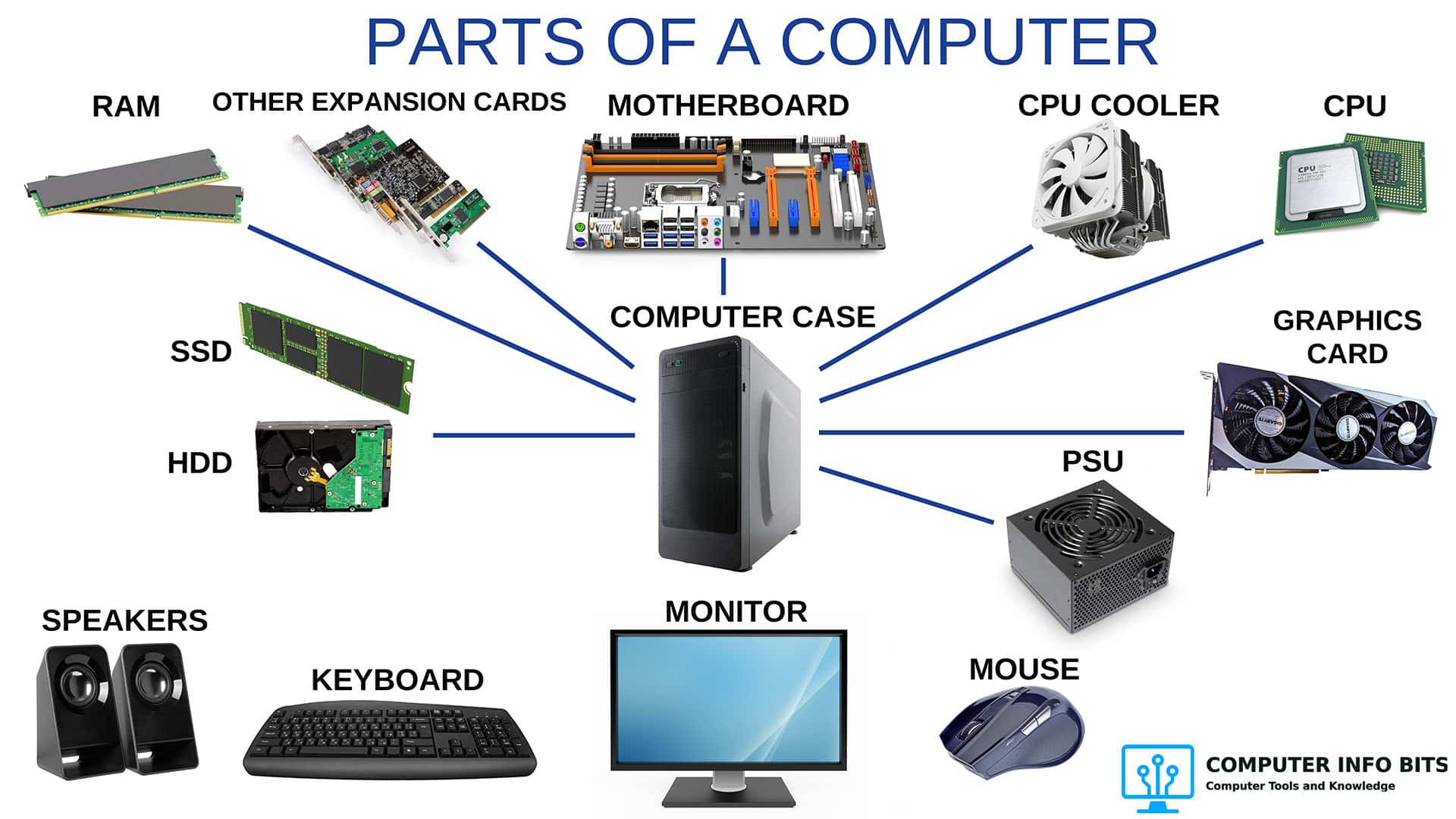
Parts of a Computer and Their Functions
A complete breakdown of every major PC component, including the CPU, RAM, GPU, and storage.
How to Check If a GPU Is Working Properly
Test your graphics card using Task Manager and MSI Afterburner. Covers common GPU problems and fixes.
PC Airflow Optimization: How to Cool Your Computer
Set up your case fans correctly to keep temperatures low and reduce dust buildup.